Connect your AI. Bring your lab’s data together.
Tell your assistant what research data you want to bring together. Ask it to organise the project, build the integrations and connect your team.
Use the assistant you already know to turn sample sheets, instrument exports and analysis results into a shared project. It can help organise and import the data you provide, then build integrations using the access you approve.
The examples below follow a fictional lab project. The screenshots show a local demonstration.
1. Connect the assistant you already use
Start by giving your assistant this request:
Connect to ADoor: adoor.run/SKILL.md
It can follow ADoor’s connection instructions or show you the steps for your app. ADoor opens in the browser, where you sign in or create an account, choose a space and approve the connection. The connect guide covers the supported assistants.
Once connected, ask it what it can see. You now have a way to work with your project’s data through a conversation. You can also open and edit the same tables in the browser.
2. Tell it what you want to bring together
Describe the outcome in your own words. For example:
I have a sample sheet, plate-reader CSVs and results from our analysis scripts. Help me bring them into one ADoor project, match the sample IDs and connect the tools that produce the data. Show me the proposed structure before importing it.
Share the exports you want it to use, or connect sources it can access. The assistant can help work out which fields belong together, propose tables and prepare the import. You do not have to arrive with a database design already worked out.
In this example, Priya’s sample sheet, instrument measurements and Jules’s calculated growth rates become related tables. The same sample IDs connect the records, so a question about a sample can draw on each part of the project.
The assistant needs access to the source data and the necessary ADoor permissions to do this work. It does not automatically see files or equipment elsewhere in the lab. Start with the data you choose to share, then extend the project as you need it.
3. Bring the team onto the same data
Once the first dataset is useful, invite the people who work with it. Priya can maintain the measurements in the browser. Tom can update the sample fields he needs. Ada, who leads the lab, can review the project.
Each person can connect their own assistant. A colleague using Claude can work with the same approved records you started with in ChatGPT. People can ask different questions without passing another copy of the spreadsheet around.
You choose what each person or tool can read and change. Access can cover a space, a table, selected fields or matching entries. An assistant cannot do more than the person who connected it, and can be given less.
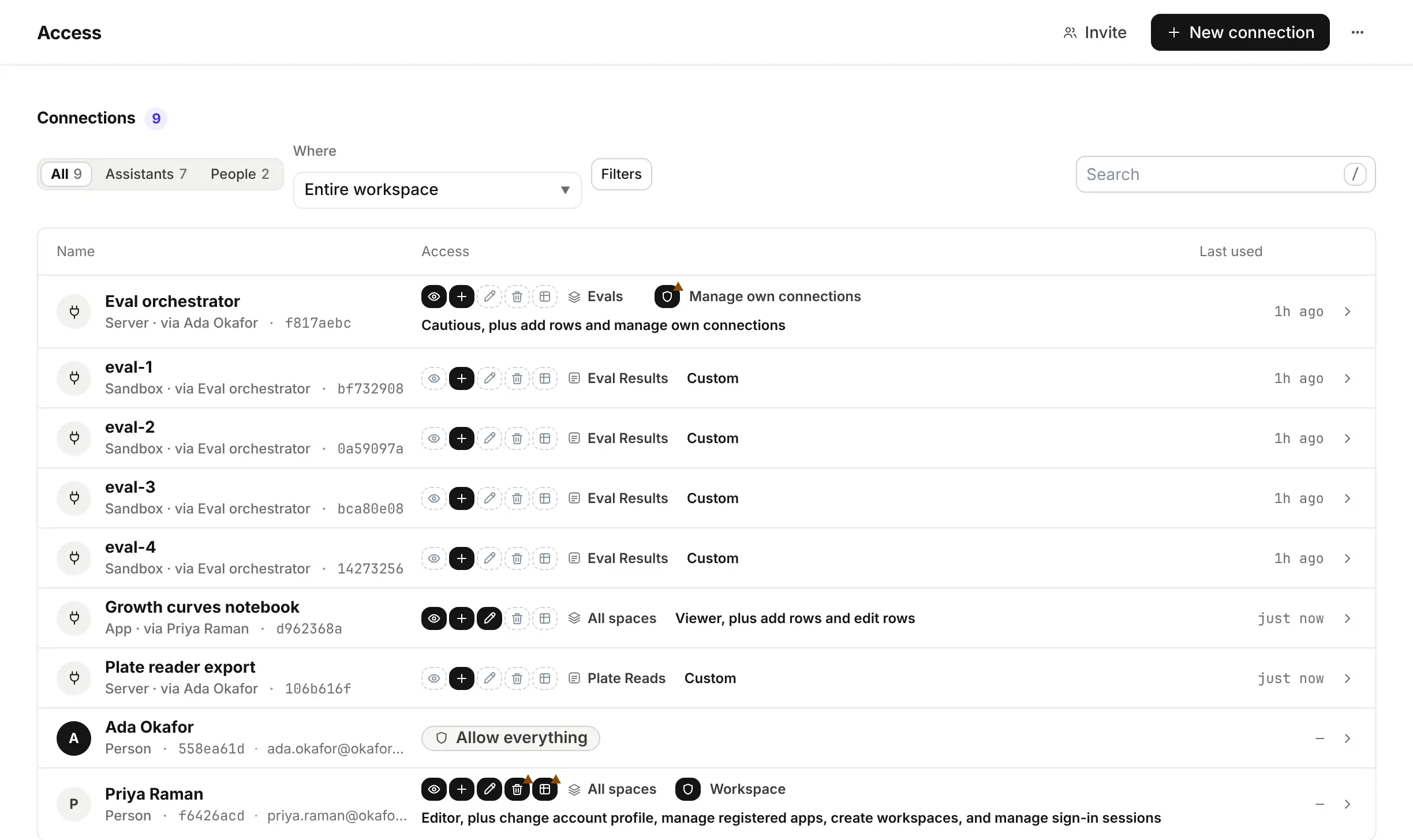
The demonstration’s Access list shows people, scripts and assistants under their own names. Click the image for a full-size view.
4. Ask it to keep new results coming in
Bringing yesterday’s files together is useful. Connecting the next export makes the project easier to keep current.
Help me connect the plate reader’s export to this project. Map its columns to the measurements table and give the export script permission to add new reads, without editing or deleting existing ones.
A coding-capable assistant can help write and configure that integration. Someone with access to the instrument’s computer installs and runs it. The details depend on the instrument’s export format, so the assistant works from an example export and the system it is allowed to reach.
The microscope can follow the same pattern: its script writes measurements and image references against the project’s sample IDs. Large image files can stay in the lab’s existing storage.
Jules can also ask his assistant to connect the Python analysis he already runs. His notebook reads the shared measurements and writes its results back, under its own connection. Priya can continue working in the browser without learning Python.
5. Ask questions across the project
Once the records are connected, the conversation can move from organising data to using it:
Which samples have both plate measurements and microscopy results? Show me the matching records and flag any missing sample IDs.
Or, before a meeting:
Summarise what changed in this project since our last review. Link the changes to the affected samples so we can check them together.
The assistant works within its approved access. If it needs more, it can ask; nothing is granted until someone approves. It can help query and summarise the data, but the team remains responsible for checking its interpretation.
What an assistant reads is also sent to the company that runs it. ADoor does not use your data to train models. Decide which research information to share with each connected service.
6. Keep track of the changes
The convenience of asking an assistant to do work is more useful when you can see what happened afterward.
Activity names the person, script or assistant behind each change and records what it replaced. The workspace owner can review the team’s changes. If an old analysis cell overwrites four growth rates, Ada can inspect that write and undo it before anyone edits those rows again.
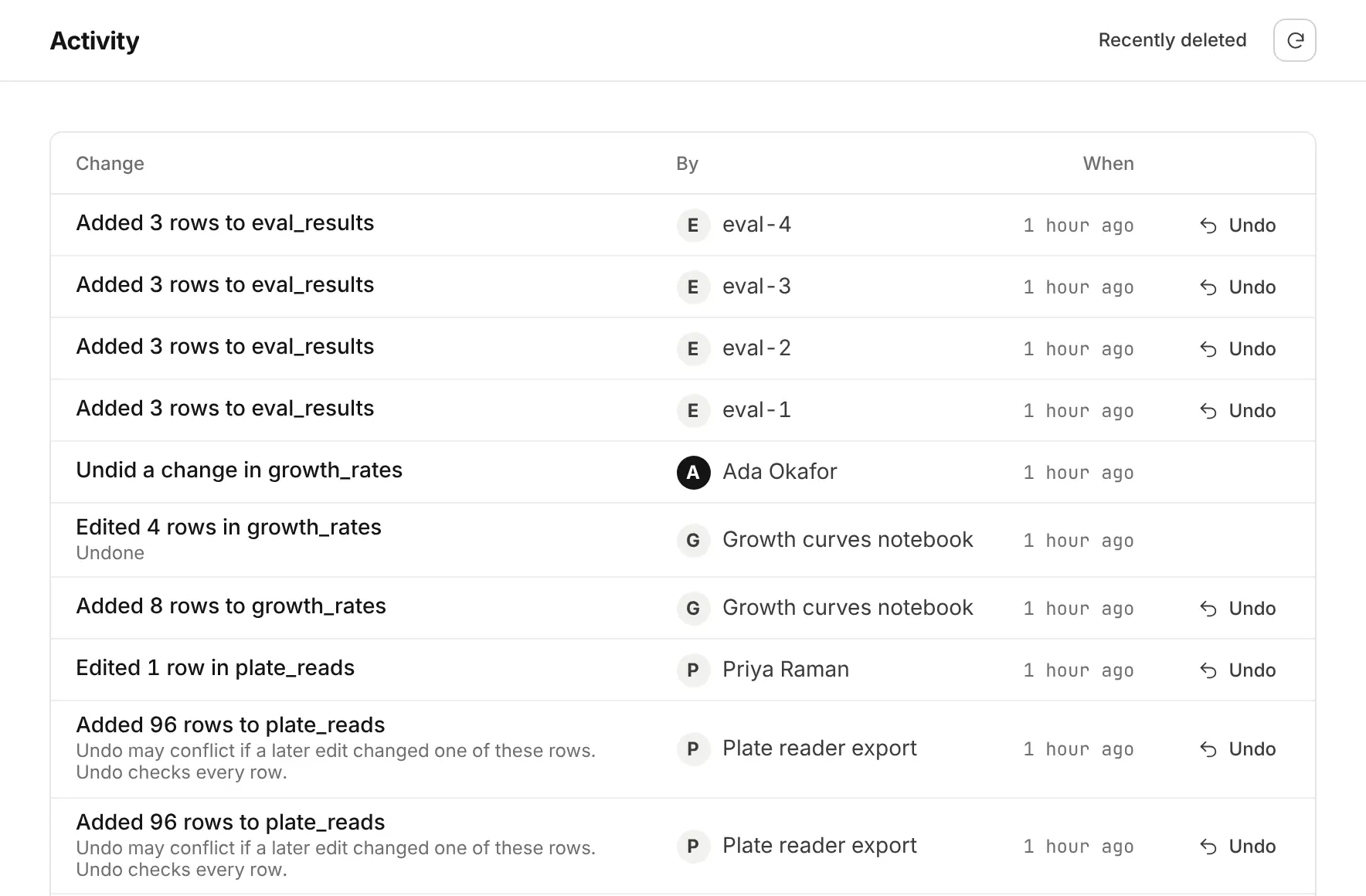
Activity in the local demonstration: an instrument export, notebook writes, a correction and an undo.
The team can open the same results at its next meeting and review how they changed. ADoor supplies the shared record; the scientific judgement stays with the people doing the research.
Start with one conversation
Connect an assistant, give it one useful dataset and ask it to bring that part of your work together. Add colleagues, sources and recurring integrations as the project grows.
A few limits matter when planning that project. ADoor is not a validated GLP or 21 CFR Part 11 system and does not provide electronic signatures or a validated audit trail.
Undo is available for the last 5,000 row changes per workspace or 30 days, whichever is shorter. Each row inserted, updated or deleted counts once. Later edits to the same rows can block undo. Keep separate long-term copies of the data and results you need to retain.
Free includes 1 space, 3 tables, 100 rows and 5 MB of storage. Pro is $10 a month per workspace, in USD before tax, with 1 GB and no row, table or space caps.
Connect your assistant · Python guide · Invite your team
Read next: How an AI research team runs and reviews an eval.